

Free beta by application — limited places.
Join the betaEvery photo on the right student
You press the shutter: the photo joins the student on screen, and the next one follows without a gesture.

The camera recognized on its own
Plug the camera in: the software detects it and opens the session with it, with nothing to set up again. A cable comes loose? One line at the top of the screen says so, the software looks for the camera, and the session resumes as soon as it is back.
Is your camera compatible?
See all cameras
Nikon — Z 30, Z 50, Z 50II, Z 5, Z 5II, Z 6, Z 6II, Z 6III, Z 7, Z 7II, Z 8, Z 9, Z f, Z fc, ZR, D6, D5, D850, D810, D780, D750, D500, D7500
Canon — EOS R1, EOS R3, EOS R5 Mark II, EOS R5, EOS R6 Mark III, EOS R6 Mark II, EOS R6, EOS R7, EOS R8, EOS R10, EOS R50, EOS R100, EOS RP, EOS R, EOS-1D X Mark III, EOS 5D Mark IV, EOS 6D Mark II, EOS 90D, EOS 850D, EOS 250D
Sony — α1 II, α1, α9 III, α7R V, α7 IV, α7R IV, α7 III, α7S III, α7C II, α7C R, α6700, α6600, α6400, α6000 (Not compatible)
Fujifilm — GFX100 II, GFX100S, GFX 50S II, X-H2S, X-H2, X-T5, X-T4, X-T3, X-S20, X-Pro3, X-T30 II (Not compatible), X-E4 (Not compatible)
Panasonic — S1R II, S1 II, S1R, S1H, S1, S5 II, S5 IIX, S5, GH6, GH5 II, GH5, G9 II, G9, G100 (Not compatible)
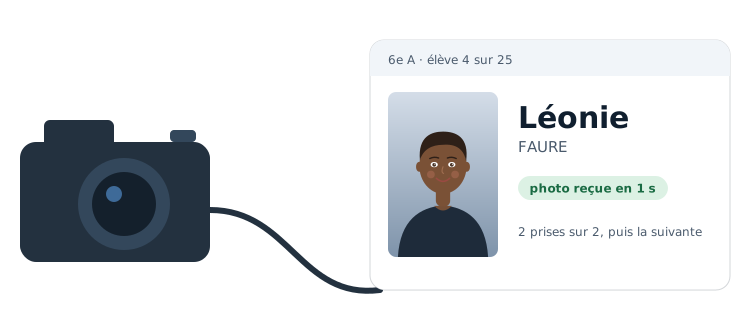
Connected until you close
The connection opens when the session starts and stays open until you close it. You shoot from the camera as usual: each photo lands on the student on screen the moment you take it.
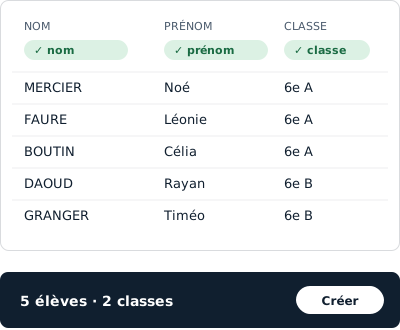
The next student, without a gesture
After the number of shots you chose, the software moves to the next student and shows their first name in large letters. A burst stays on the same student; one key takes you back if needed.
Every brand
Direct cable connection for supported cameras. For the others, the manufacturer's own software drops the photos into a folder that our software watches: they land on the student on screen just the same.
Filed by school and by class
Each photo is copied into a folder organized by school, year and class, under its original name. You find it like a photographer's folder, and the software takes you there in one click.
The card keeps its copy
When your camera allows it, the memory card keeps its own copy of each photo: your safety net stays in place, even when tethered.
Which cameras are compatible?
Every brand of digital camera.
What about a student who comes out of turn?
Pick them in the list, take the photo, then resume the sequence where you left off.
Do I need internet during the session?
No: the session runs on your computer.
Do I need internet for tethered capture?
No: the session runs on your computer, the camera connected by cable or through its folder.
What if I shoot twice very quickly?
The burst stays on the same student; moving to the next one waits until you have finished.
Do my photos stay on the card?
When your camera allows it, the card keeps its own copy.
- Data handled with care. Only the data that is needed is asked for, and every named export is logged.
- Hosted in France. Your students' details and your photos stay on servers in France.
- Designed in France. Designed and run by PIXIEL, in Vendée, France.
What is tethered capture in school photography?
With tethered capture, the camera is connected to the computer for the whole session. Each photo you take arrives in the software at once, instead of staying on the card until the evening.
For school photography, that changes everything: the software knows which student is in front of you, since it is the one on screen. The incoming photo is therefore filed under their name, with no sorting or renaming afterwards.
You keep your camera in your hands and shoot as usual. The card can keep its own copy: you do not lose your safety net.
Which camera for a tethered session?
Cameras that connect by cable send their photos straight to the software. For the others, the software watches a folder: the one where your own capture software drops the photos. Either way, the photo lands on the student on screen.
You choose your camera's mode once in the settings; after that, there is nothing to configure from one session to the next.
How a session runs, student by student
The student's first name appears in large letters, their class in the film strip at the bottom of the screen. You shoot; once you have taken the number of shots you set yourself, the software moves on to the next student by itself. A burst stays on the same student.
Everything runs from the keyboard, in a few keys: back to the previous student, mark someone absent, redo the last shot, move to the next student, take the class photo, close the session. The screen shows nothing but what you need while shooting.
- Open the class session: the first student on the list appears.
- Shoot: the photo lands under their name.
- Once the number of shots is reached, the next student appears.
- Close the session: everything is filed.
If the camera comes unplugged
A cable comes loose, a battery runs flat: the screen says so in one line, at the top of the scene, so you do not photograph a whole class into the void. The software looks for the camera, and the session resumes as soon as it is back.
The photos already taken are copied into a folder organized by school, year and class, under their original name: you find them like a photographer's folder.
Find out more
Tethered capture changes a school photo day: no more sorting files in the evening to work out who is who, each photo is already filed under the student photographed. You follow the list, the next student appears, and the counter tells you where you are.